
Where to Find Performance Monitors
Performance Monitors can be used in Projects, Groups, and Accounts.
Projects
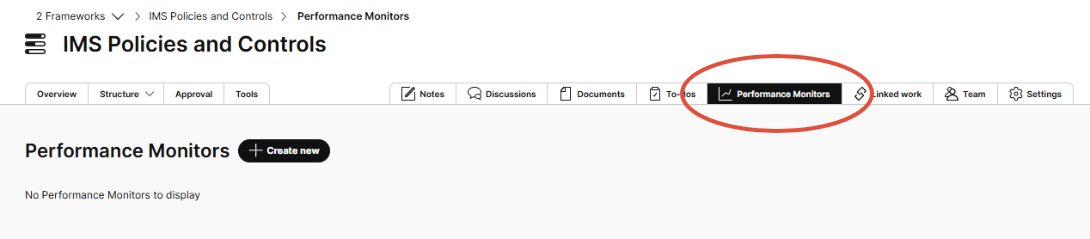
- Performance Monitors are located on the right of the project toolbar.
Groups
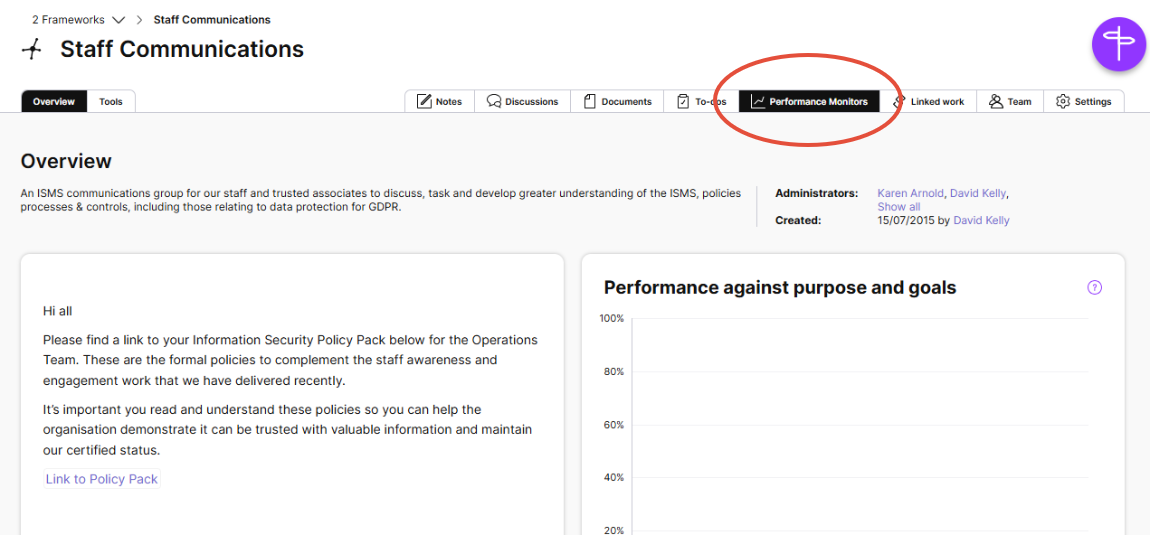
- As with projects, Performance Monitor are on the right of the group toolbar.
Accounts
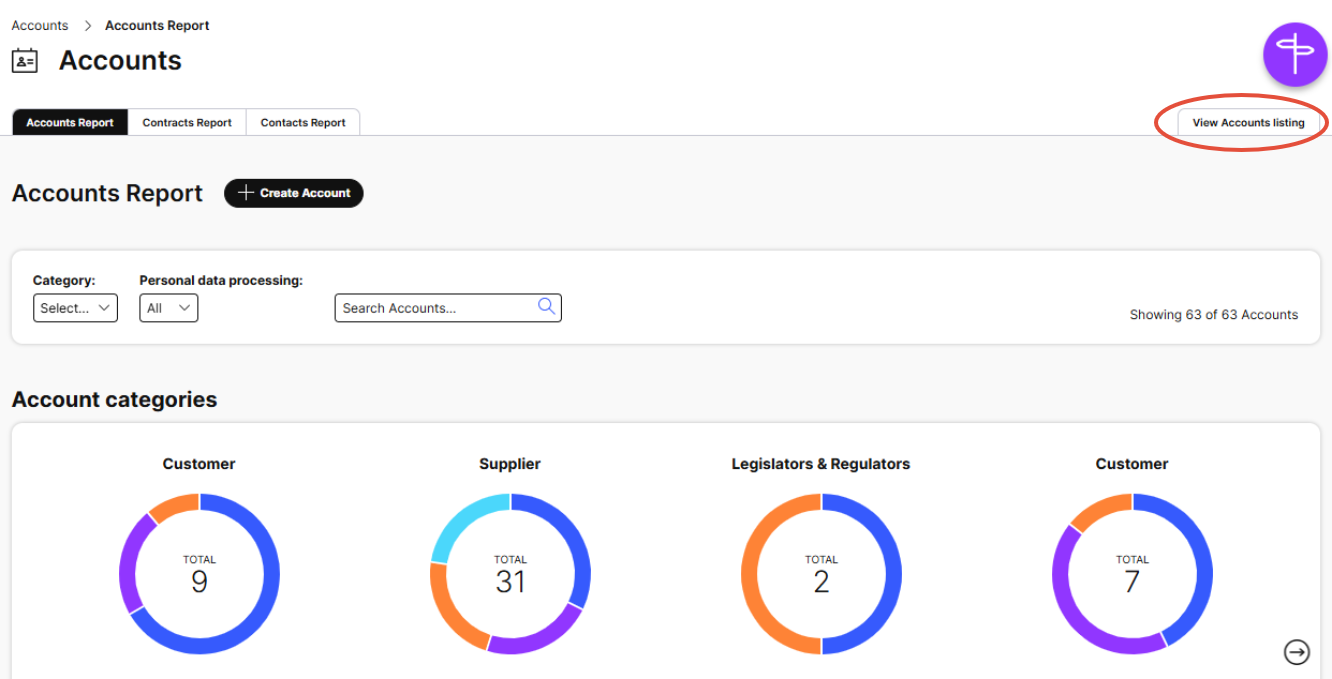
- Go to the Accounts Overview page.
- Select View Accounts Listing.
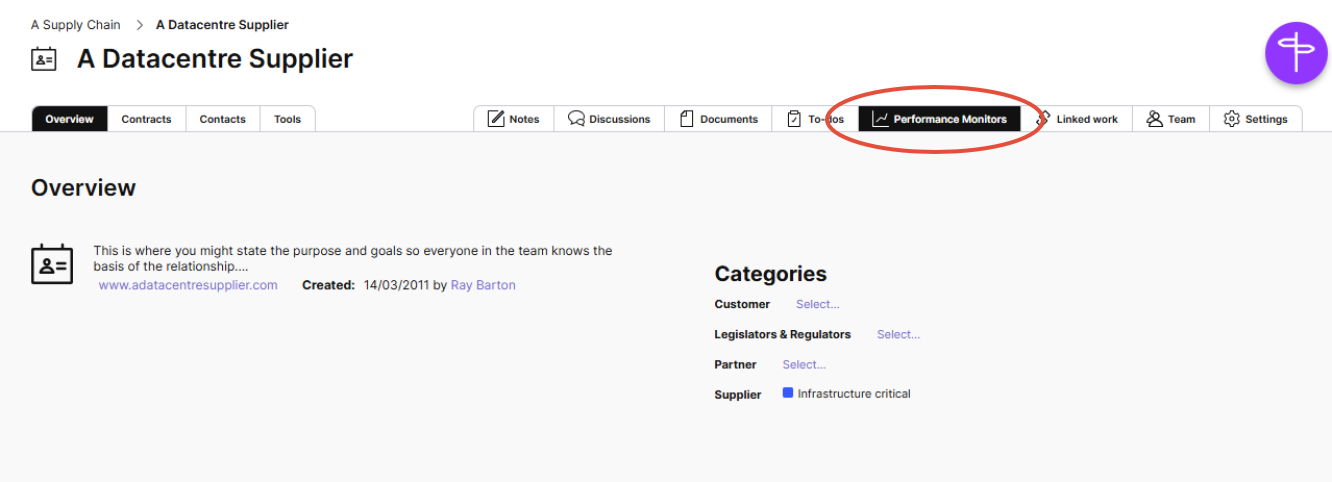
- Choose the account you want to create a Performance Monitor for.
You’ll find the Performance Monitor option on the far right of the toolbar.
Creating a Performance Monitor
Step 1 – Select the Type of Performance Monitor
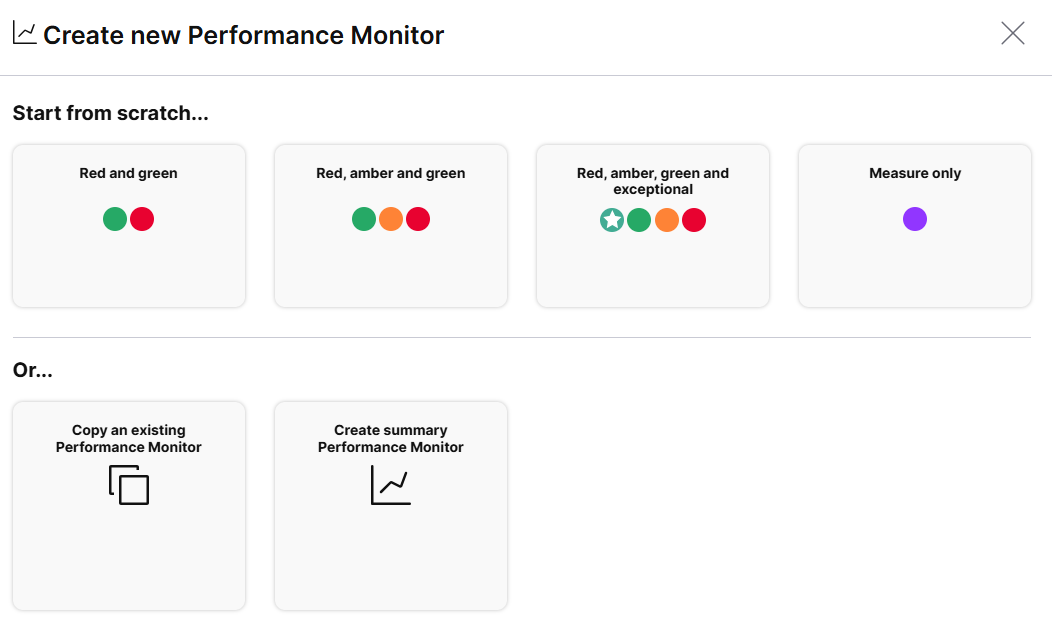
Click the Performance Monitor tab and then click +Create new. This opens the Create New Performance Monitors screen.
You can choose from four types of Performance Monitors:
- Red, Green – A binary measure indicating whether a target has been met. Readings above the threshold are green; those below are red.
- Red, Amber, Green – Measures three performance levels with two thresholds.
- Red, Amber, Green, Exceptional – Measures four performance levels with three thresholds.
- Measure Only – Records inputs without targets.
You can also:
- Copy a Performance Monitor – Copies the title, settings, and targets from an existing Performance Monitor (readings are not copied).
- Summary Performance Monitor – Summarises multiple Performance monitors in ISMS.online.
Step 2 – Configure Performance Monitor Settings
After selecting a Performance Monitor type, you’ll see the Add Performance Monitor screen, split into four sections:
1. Details
Set the Performance Monitors name, description, reference number, association, and assignee.
Note: The Name field cannot be left blank.
2. Scoring
Choose how readings should display.
- You can apply a currency, percentage, or unit metric.
- Supported currencies include: GBP, EUR, USD, CAD, NZD, AUD, ZAR.
Note: The Scoring field cannot be left blank.
3. Frequency
Set:
- How often readings occur.
- How long the Performance Monitor will run.
- The start date.
- Reminder notifications.
Once set, the frequency cannot be changed. If you need a different frequency later, you’ll need to create a new Performance Monitor.
4. Threshold
Control how performance thresholds are applied:
- Fixed – Thresholds remain the same for each reading.
- Vary Over Time – Thresholds can change with each reading.
- Choose whether higher or lower values are better.
The number of threshold fields shown depends on the Performance Monitors type. For example, a Red, Amber, Green Performance Monitor requires two thresholds.
- For varying thresholds, a new row is created for each reading.
- For ongoing Performance Monitors with varying thresholds, you can click Add More to create additional rows.
Once you have applied your desired settings, click 'Save Performance Monitor'. Once a Performance Monitor has been created, you can add readings to it.