
ISMS.online’s Single Sign-On (SSO) integration includes a powerful feature: New User Templates. This allows administrators to automatically assign access and permissions to new users as they log in for the first time.
Please note:
When using SSO only, New User Templates apply only to users created at the point of logging in. If you use SCIM, templates are also applied when a user is added to a linked group (see New User Templates with SCIM below).
Reminder:
Entra ID is the updated name for Microsoft Azure Active Directory (Azure AD).
What Are New User Templates?
New User Templates are designed to help platform administrators streamline onboarding by automatically assigning Work areas and permissions to new users based on their role or department.
There are two types of templates:
1. Templates for All New Users
This type applies universally. You can only have one active template of this kind, and it is applied to every new SSO-created user in addition to any group-specific templates.
Example:
You might assign an “Employee Induction” Work area to all new users while also giving them access to department-specific content through a group-based template.
2. Templates for Specific Groups
These templates are linked to defined groups in Entra ID. When a user logs in for the first time, ISMS.online identifies the group they belong to and applies the appropriate template.
Setting Up New User Templates
Step 1: Create a Group Attribute Claim in Entra ID
This step allows ISMS.online to read group information from Entra ID when new users log in.
- Navigate to:
Entra ID > Enterprise Applications > ISMS.online app > Single Sign-On > User Attributes & Claims - Click Add a group claim.

- Define which groups the claim should include, then complete the configuration as follows:
- Claim name:
http://schemas.xmlsoap.org/claims/Group - Source attribute:
user.groups
- Claim name:

- Click Save, then refresh the page to confirm the configuration is in place.

A paste-able version of the URL is :
| http://schemas.xmlsoap.org/claims/Group | user.groups |
Step 2: Create or Identify Groups in Entra ID
If your organisation doesn’t already have relevant groups set up (e.g. based on department or team), you’ll need to create them.
To create a group:
- Go to Entra ID > Groups See here for the Microsoft guide on creating Groups.
- Click New Group and follow the prompts.
(Refer to Microsoft’s guide on creating groups if needed.) - Open the group for which you want to create a template and copy the Object ID.

Step 3: Create a New User Template in ISMS.online
- In ISMS.online, go to:
Organisation Settings > New User Templates - Click Create New Template
.

- Complete the template details (name, description, etc.)
- Choose the option:
Only users who belong to a group in the identity provider - Paste the Object ID from Entra ID into the SSO Attribute field

- Scroll down to assign:
- Permissions
- Work areas
- Policy Packs
Once saved, this template will be applied automatically to any new user who belongs to the linked group and logs in via SSO.
Example:
If you create a “Marketing” template and link it to your organisation’s Marketing group in Entra ID, any new SSO user in that group will be automatically assigned the relevant access, Work areas, and Policy Packs defined in your template.
New User Templates and SCIM.
If you use SCIM provisioning with Entra ID, New User Templates can do more. A template is applied whenever a user is added to a linked group, not only when the user is first created.
Step 1: Add groups to the SCIM application in Entra ID
Add the groups you want to use to the ISMS.online SCIM application in Entra ID. They will appear in ISMS.online after the next sync, or straight away if you use Provision on Demand.
Step 2: Check your groups in ISMS.online
Go to Organisation Settings. A new SCIM groups tab, next to New user templates, shows which groups have been synced from Entra ID and which users belong to each one.

Step 3: Link a template to a SCIM group
When you create or edit a New User Template, select the group from the SCIM group drop-down. You don’t need to copy and paste an Object ID, so Steps 1 and 2 above aren’t needed for SCIM groups.
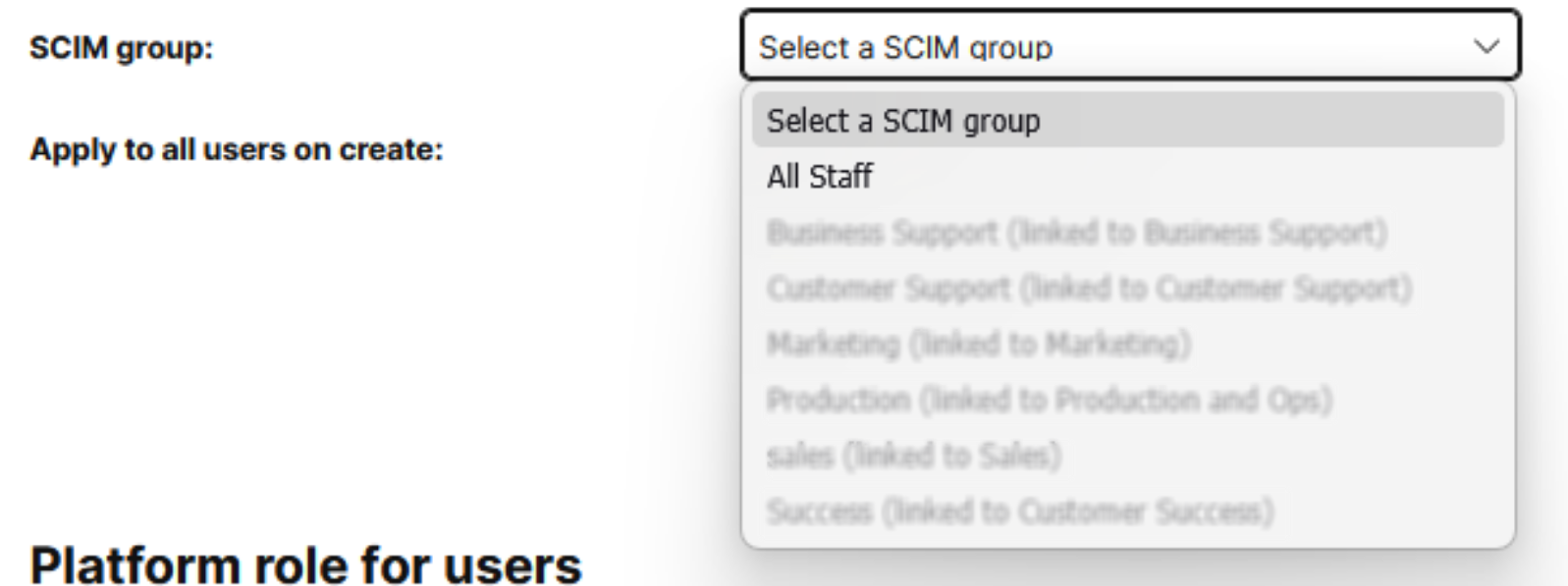
Once a template is linked, SCIM keeps the group membership in sync with Entra ID, so you don’t need to set up a group attribute claim.
Example:
If a user moves into your Marketing group in Entra ID, ISMS.online will automatically apply the Marketing template the next time SCIM syncs, even if they already have an account.
If you need any support while setting up New User Templates or configuring SSO or SCIM, our support team is happy to help. Contact us at support@isms.online.