Frameworks are a simple way to group related work together. For example, you could create a Framework for everything related to your information management system — such as your Policies and Controls project, Corrective Actions Track, and ISMS Board area.
Updates
Navigating to Framework
You can view your Framework by:
- Hovering over the Framework in the left hand navigation bar.
- Selecting All Work in the left hand navigation bar and accessing them through there.
On the main Framework page, you’ll see all the work areas that have been added to it. This gives you an at-a-glance overview and quick access to each area. Once added, the contents of these work areas are automatically pulled into the Framework and can be accessed via the left-hand menu.
Framework are ideal for managing an overall programme of work, such as your ISMS.
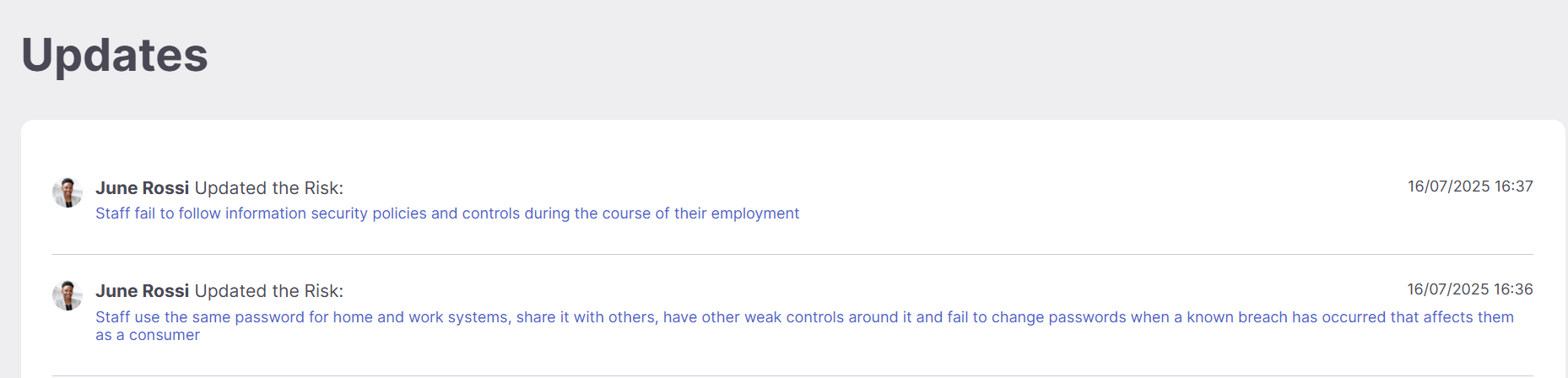
Updates
The Updates feed displays all updates from the work areas within the Framework, alongside any updates from actions taken in the Framework itself. This gives you a single place to stay informed about progress and changes.
Reports
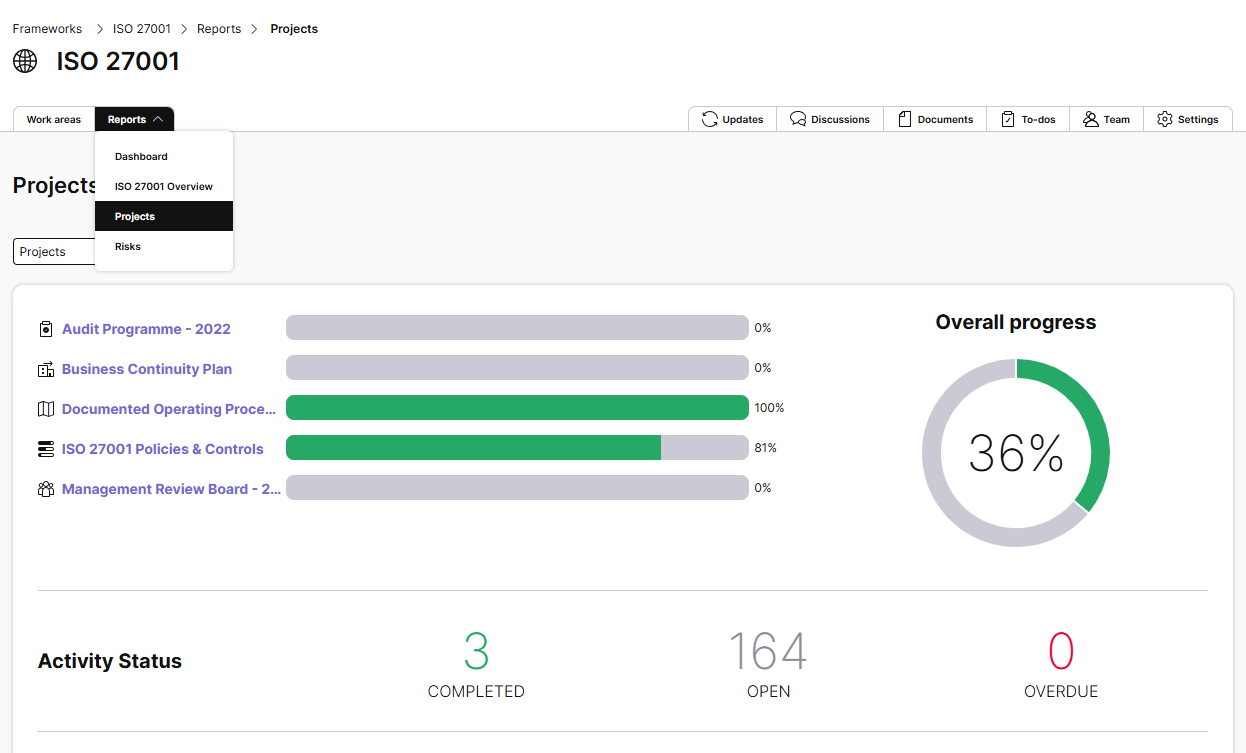
Reports offer detailed insights and statistics on the work within your Framework.
For example:
- The Project Report shows the progress of all projects in the Framework and includes activity statistics.
Dashboard
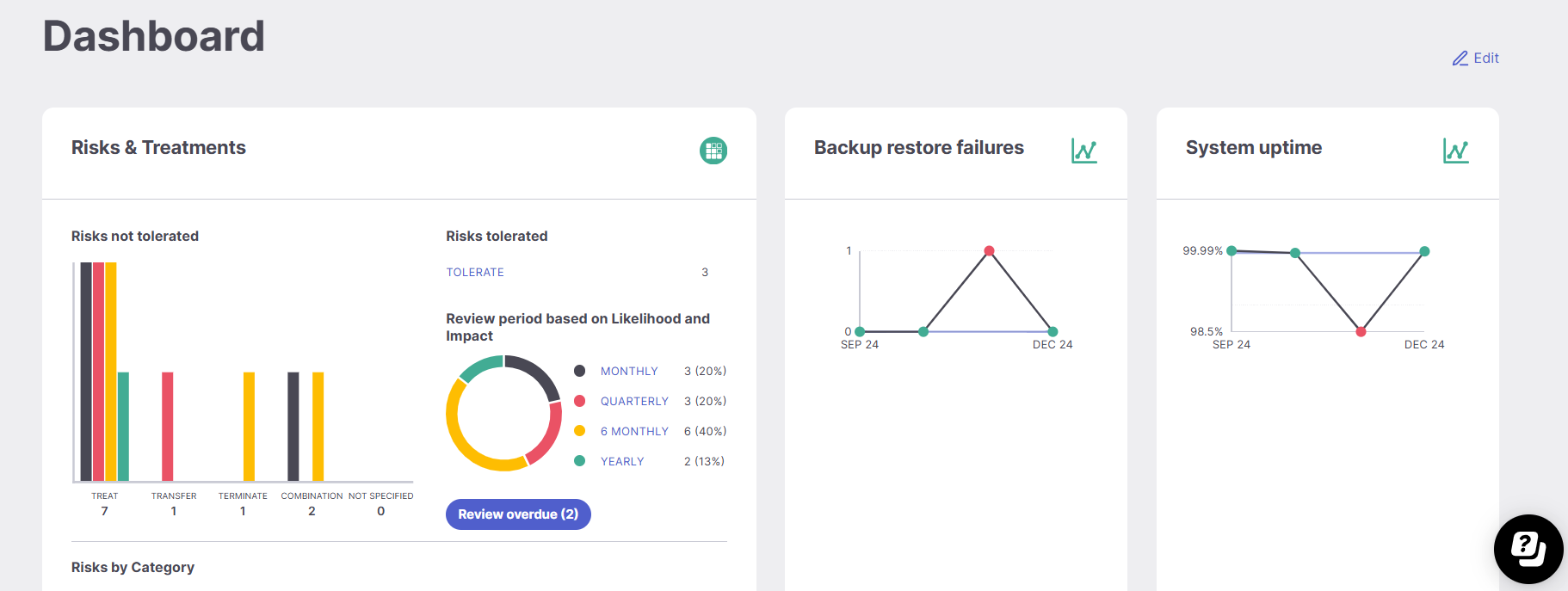
The Framework Dashboard provides a powerful overview of everything happening in your ISMS. It offers visibility across all work areas, helping you track progress, identify overdue items, and monitor responsibilities. You can use it to see:
- Risks currently in treatment.
- Where work sits in its workflow.
- What items require attention.
For more on using the Dashboard, see the dedicated guide.
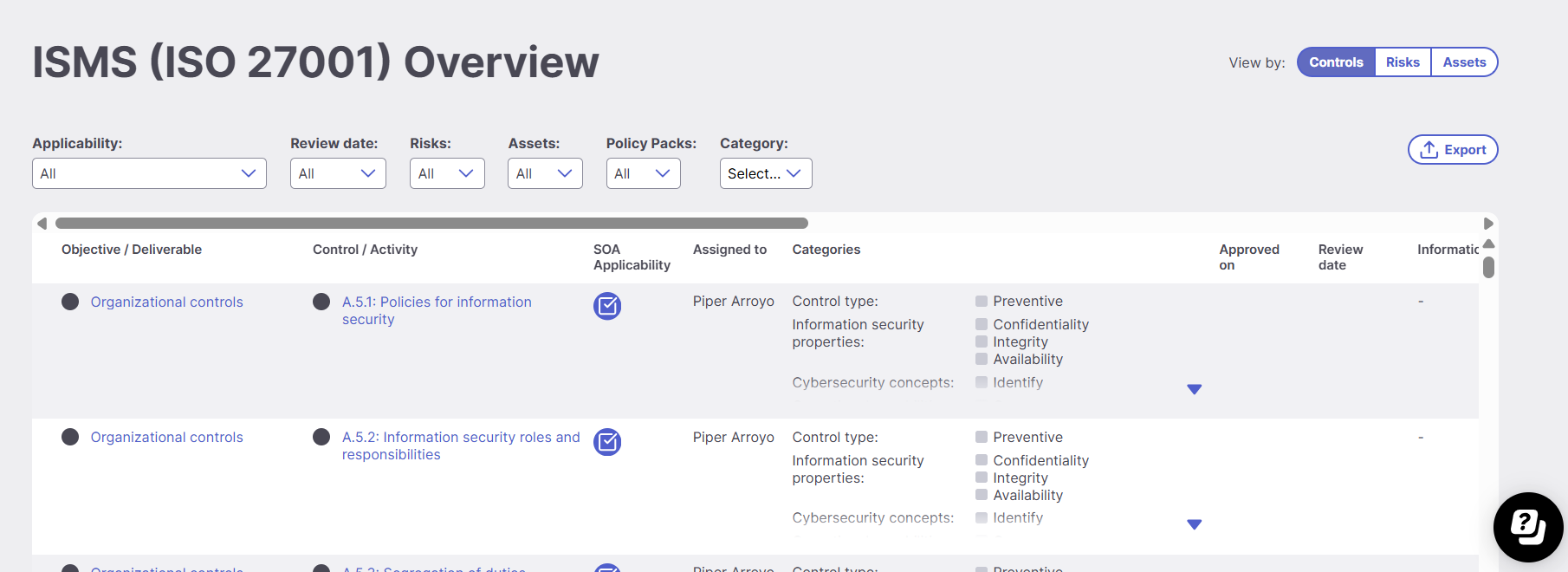
ISMS Overview Report
The ISMS Overview Report helps you see how work is connected within your ISMS. If you’ve used the Linked Work feature to connect your Controls, Risks, and Assets, you can view these connections here.
This is particularly useful for:
- Identifying which risks are linked to specific policies and controls.
- Spotting any risks that aren’t yet connected to relevant items.
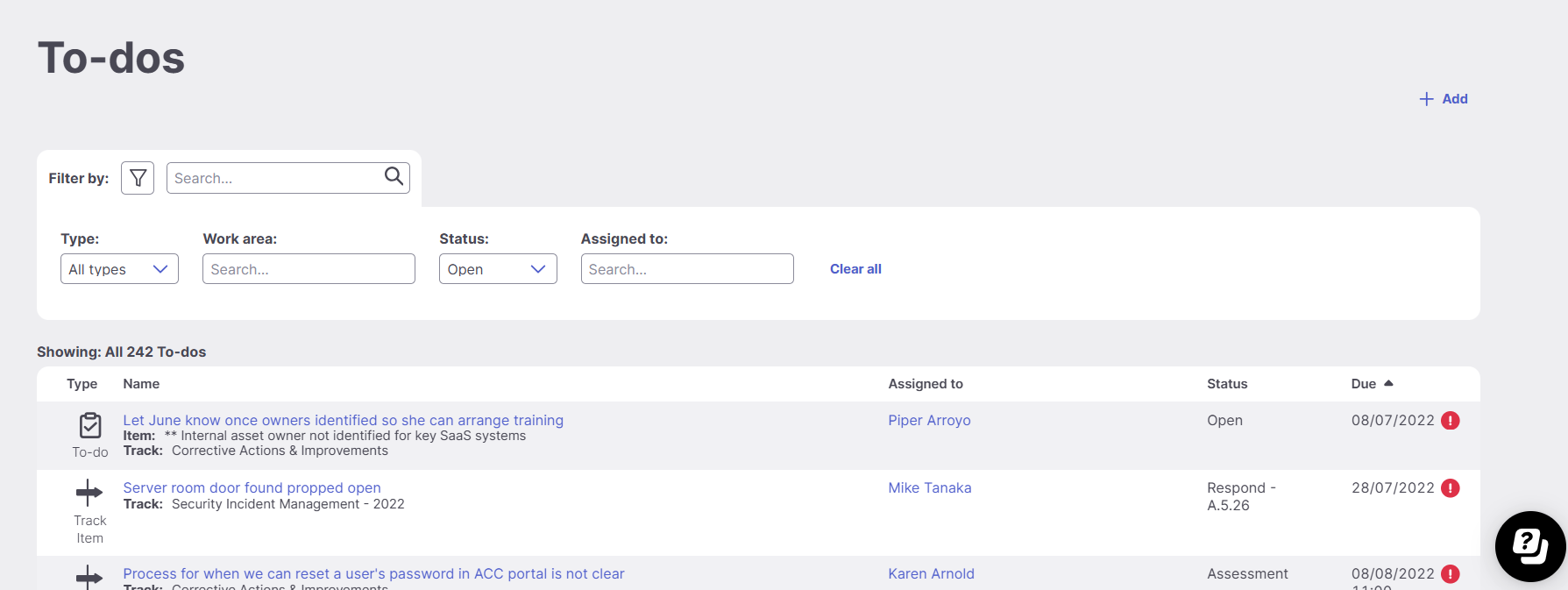
Discussions, Documents, and To-dos
These sections show all items from within the work areas in the Framework, as well as those added directly to the Framework.
The To-do list displays:
- To-dos created in the Framework.
- Activities from projects.
- Track items from Tracks in the Framework.
Any Discussions, Documents, or To-dos created directly in the Framework are associated only with the Framework and will not appear in individual work areas.
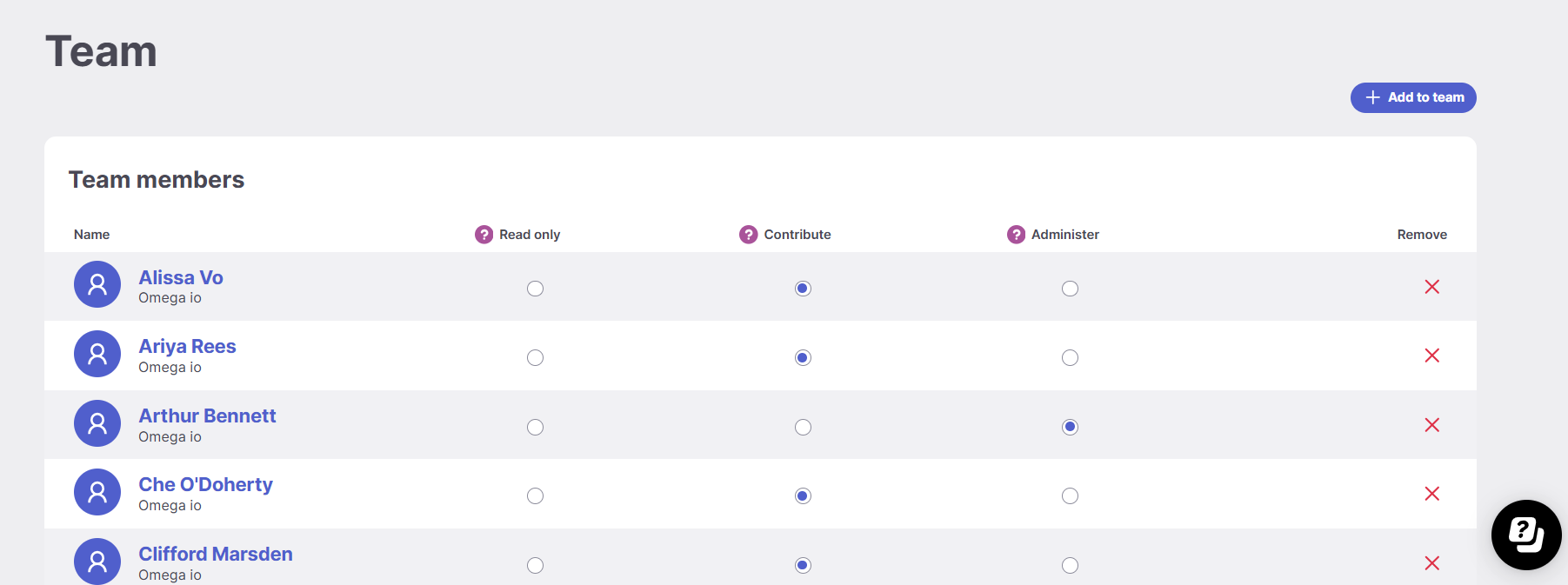
Team
By default, Frameworks are private unless shared. You can:
- Keep a Framework private so only you can see it.
- Add other users to the Framework Team so they share the same view.
You can also be added to another person’s Framework team to access their shared Framework.
Settings
If you’re a Framework Administrator, you can manage basic settings:
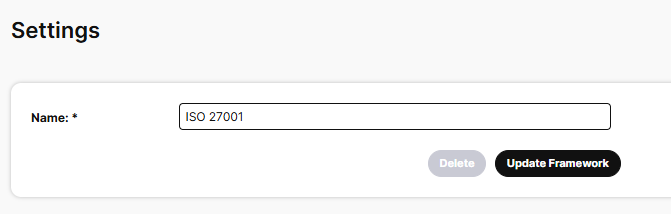
- Update the Framework name.
- Delete the Framework if it’s no longer required.